Most WordPress SEO setup guides give you a 30-item checklist without telling you what’s urgent. They also each push their own preferred SEO plugin — Yoast’s guide recommends Yoast, AIOSEO’s guide recommends AIOSEO, and so on. That’s not useful when you have 90 minutes and want to do this once, correctly.
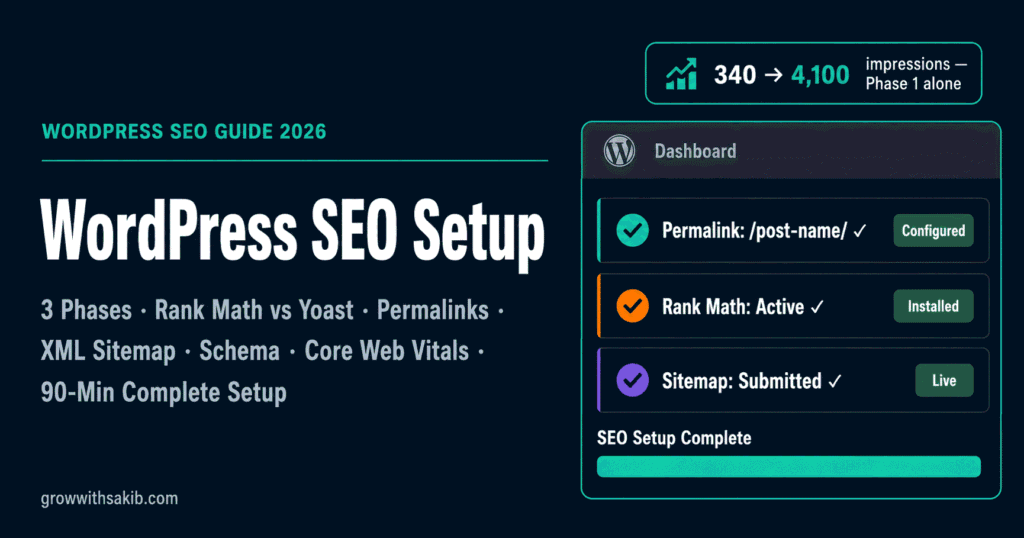
This guide is plugin-agnostic for the parts that don’t need a plugin (most of the foundation) and gives an honest plugin comparison for the parts that do. The 3-Phase Framework prioritises tasks by impact — so even if you stop after 30 minutes, you’ve completed the highest-leverage work.
If you want the broader strategic context, the complete small business SEO guide on GrowWithSakib covers how WordPress SEO fits within your overall SEO strategy.
Is WordPress Actually Good for SEO?
Yes — and the data backs it up. WordPress powers over 43% of all websites on the internet according to WordPress.org’s own statistics. Out of the box, WordPress is reasonably well-optimised for search engines, with clean HTML output, semantic page structure, and a flexible permalink system.
However, a default WordPress install ships with several SEO-hostile defaults — including a permalink structure that uses query parameters instead of clean URLs, and (depending on how you set up the site) sometimes a ‘discourage search engines’ setting left checked. The setup work in this guide fixes those defaults and adds the layers needed to compete in 2026 search.
What WordPress Does Well Out of the Box
- Clean, semantic HTML output
- Built-in basic XML sitemap (since WordPress 5.5)
- Mobile-responsive themes (most modern themes)
- Easy meta description editing via the post editor
- Solid permalink customisation (just needs to be enabled)
What You Need to Fix or Add
- Default permalink structure (uses ?p=123 query string format)
- Search engine visibility settings (Settings → Reading)
- Title tag and meta description control across the site
- Schema markup for rich results
- Image optimisation
- Core Web Vitals (depends on theme and plugins)
- AI Search readiness (llms.txt, structured data)
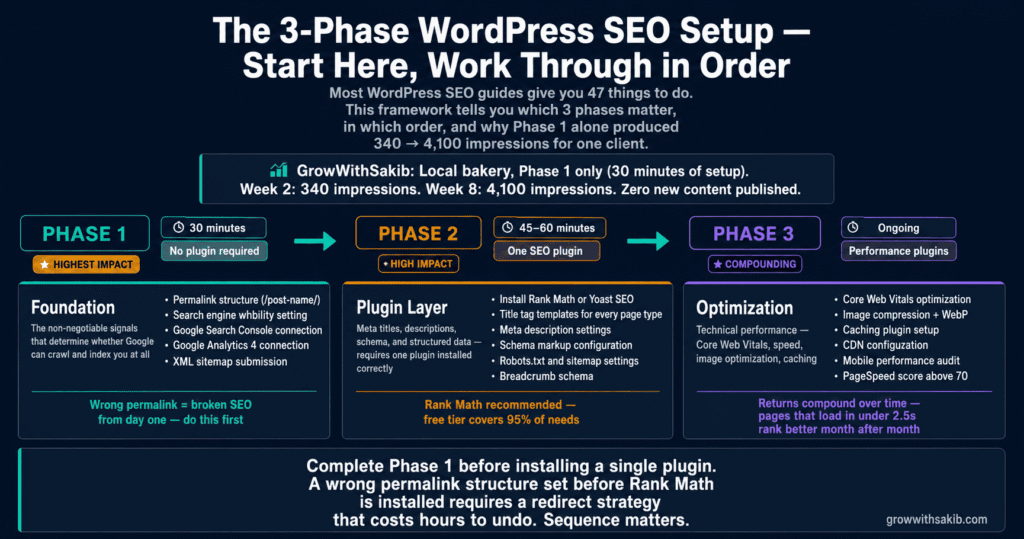
The 3-Phase WordPress SEO Setup Framework
Most checklists treat all 30 tasks as equally important. They’re not. This framework organises the work by phase and impact tier, so even if you only complete Phase 1, you’ve done the highest-leverage 80%.
| Phase | Duration | Plugin Required? | Impact |
| 1. Foundation | 30 minutes | No | Highest — fixes critical defaults |
| 2. Plugin Layer | 60 minutes | Yes (one plugin) | High — controls titles, metas, schema, sitemap |
| 3. Optimization Layer | Ongoing | Mixed | Compounding — long-term content + performance |
These five tasks are the highest-impact WordPress SEO work and require zero plugins. Skip these and no amount of advanced configuration later will compensate.
1.1 Fix the Search Engine Visibility Setting (5 minutes — Highest impact)
Go to Settings → Reading. Look for the “Search engine visibility” section. If the box next to “Discourage search engines from indexing this site” is checked, uncheck it immediately.
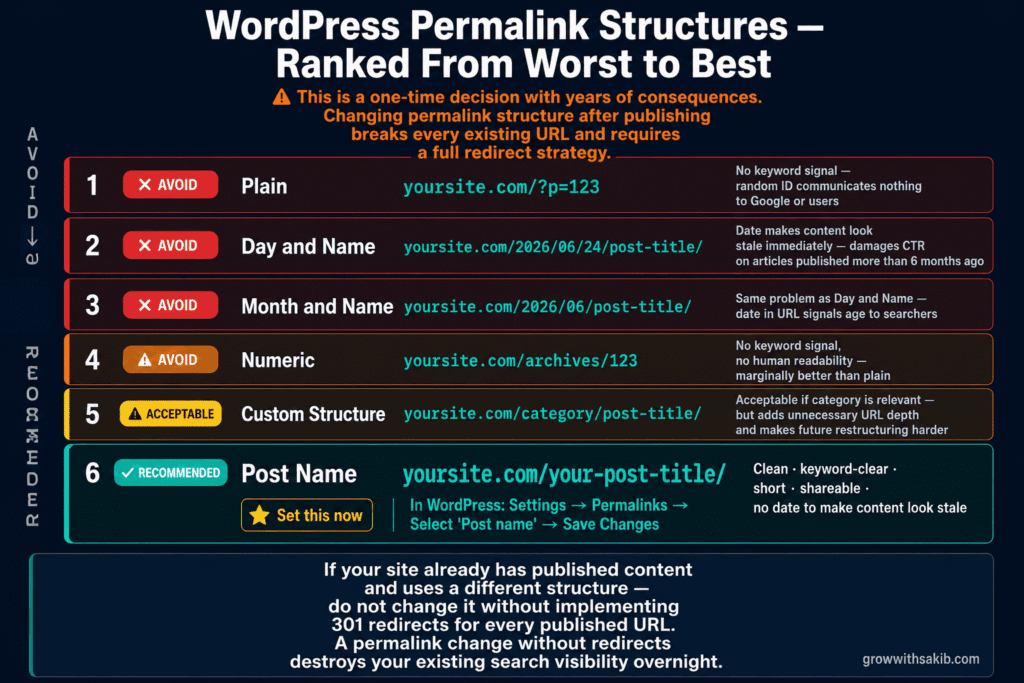
1.2 Change Permalink Structure (5 minutes — Highest impact)
Go to Settings → Permalinks. Select Post name (which produces URLs like /your-page-title/) and save. This single change replaces ugly default URLs like /?p=123 with clean, keyword-friendly URLs.
| Permalink Option | Example URL | SEO Suitability |
| Plain (default) | /?p=123 | ❌ Avoid — no keywords, no readability |
| Day and name | /2026/06/18/post-title/ | ⚠️ OK but adds date that ages content |
| Month and name | /2026/06/post-title/ | ⚠️ Same issue with date |
| Numeric | /archives/123 | ❌ Avoid — no keywords |
| Post name | /post-title/ | ✅ Best — clean, keyword-rich |
| Custom structure | /blog/post-title/ | ✅ Works if you want a category prefix |
1.3 Confirm HTTPS Is Active (5 minutes — High impact)
Visit your site. Confirm the URL starts with https:// and you see the padlock icon in the browser. According to Google Search Central’s HTTPS documentation, HTTPS is a confirmed (lightweight) ranking signal and a baseline trust signal for both Google and users.
If your site is still on HTTP: most modern hosts (SiteGround, Kinsta, Cloudways, Hostinger) provide free SSL via Let’s Encrypt with a one-click install in your hosting panel. WordPress 5.7+ also includes a built-in HTTPS detection and migration tool in Tools → Site Health.
1.4 Configure Site Title and Tagline (5 minutes — Medium impact)
Go to Settings → General. Set:
- Site Title — Your brand name, no keywords stuffed in
- Tagline — A clear, descriptive sentence about what you do. Avoid the default ‘Just another WordPress site’ (this can appear in search results).
1.5 Connect Google Search Console (10 minutes — High impact)
Google Search Console is non-negotiable. It’s the primary diagnostic and monitoring tool for your site’s organic performance. Go to Google Search Console and add your site as a Domain property (preferred) or URL-prefix property.
- Verify ownership via DNS TXT record (for Domain property) or HTML tag/file/GA4 method
- Submit your XML sitemap once it’s available (Phase 2)
- Watch the Performance and Indexing reports weekly
For a deeper walkthrough, see the how to use Google Search Console guide on GrowWithSakib.
Phase 2 is where you install an SEO plugin to handle the things WordPress doesn’t do natively: granular meta control, schema markup, advanced XML sitemaps, redirect management, and content analysis.
Do You Actually Need an SEO Plugin?
Technically, no. According to the WordPress.com SEO documentation, a WordPress site can be indexed and ranked without any SEO plugin. WordPress 5.5+ includes a basic XML sitemap, and you can edit titles and meta descriptions manually through theme code or post excerpts.
In practice, almost everyone benefits from one SEO plugin because the manual workflow is tedious and error-prone. The right answer is: install one SEO plugin (never two). The plugin you pick matters less than picking one and configuring it consistently.
Honest 2026 SEO Plugin Comparison
Each competitor article recommends their own plugin. Here’s an honest comparison based on the current 2026 plugin landscape — including the recent narrative shifts noted in WPBeginner’s 2026 WordPress SEO analysis:
| Plugin | Strengths | Weaknesses (2026) | Best For |
| Yoast SEO | Most-installed; long-trusted; gentle learning curve | Per WPBeginner’s recent analysis, reportedly ‘not innovating’ compared to newer alternatives | Conservative users who value stability over new features |
| Rank Math | Feature-rich free version; clean UI; popular among SEOs | Per WPBeginner, the recent PE acquisition has reportedly slowed innovation pace | Sites wanting many features without paying |
| AIOSEO | Active development; setup wizard; checklist; integrations | Pushed aggressively in marketing — may feel sales-heavy | Users wanting guided setup and broad feature set |
| SEOPress | Lightweight; clean code; honest pricing | Smaller user base; less community content | Users prioritising site performance over features |
Bottom line: any of the four works for a typical small business. The differences matter at the margins. If you want a recommendation, AIOSEO has the strongest setup wizard for beginners, Rank Math is the most feature-rich free option, and SEOPress is the lightest. Yoast remains a safe, well-documented choice. Pick one and stop researching.
2.1 Install Your Chosen SEO Plugin (5 minutes)
- Go to Plugins → Add New
- Search for your chosen plugin (Rank Math, AIOSEO, Yoast SEO, or SEOPress)
- Click Install Now then Activate
- The plugin will launch its setup wizard automatically
2.2 Run the Setup Wizard (15 minutes)
Each plugin has its own wizard, but the questions are similar. Here’s what to configure regardless of plugin:
- Site type — blog, news, online store, business — pick the closest match
- Business info — organisation name, logo, contact details (used for schema)
- Featured image, social meta — confirm Open Graph + Twitter card defaults are enabled
- Sitemap features — enable XML sitemap; include posts, pages, and important taxonomies
- Search Console connection — link your Google Search Console for in-dashboard performance data
2.3 Configure Title and Meta Templates (15 minutes)
Set sitewide default title and meta description templates so new content has proper defaults even when you don’t fill them in manually.
| Page Type | Title Template | Meta Description Approach |
| Homepage | [Your Brand]: [Specific Value Promise] | Written manually — your most important meta |
| Blog posts | [Post Title] | [Brand] | Auto-pull excerpt if not manually set |
| Pages | [Page Title] | [Brand] | Manually written for every important page |
| Categories | [Category] Archive | [Brand] | Auto-generated description acceptable |
| Tags | Typically set to noindex | Not needed if noindexed |
| Author archives | Often set to noindex for single-author sites | Not needed if noindexed |
For deeper guidance on title/meta writing, see the how to write SEO title tags guide on GrowWithSakib.
2.4 Submit Your XML Sitemap to Google (5 minutes)
Once your SEO plugin generates the sitemap, find its URL (typically /sitemap_index.xml or /sitemap.xml) and submit it in Google Search Console under Sitemaps → Add new sitemap.
2.5 Configure Schema Markup (10 minutes)
Modern SEO plugins automatically add basic schema markup to your pages. Confirm at minimum:
- Organization schema on your homepage
- Article schema on blog posts
- LocalBusiness schema if you have a physical location or service area
- Breadcrumb schema sitewide
- FAQ schema on pages with real FAQ sections
Validate your schema using Google’s Rich Results Test before relying on it.
2.6 Set Noindex on Low-Value Pages (10 minutes)
Some pages should NOT be indexed. Setting these to noindex prevents them from competing with your real pages and improves Google’s perception of your site’s quality — a technical SEO practice explained further in the keyword research guide, which covers how page indexation decisions affect which queries you can realistically rank for.
- Tag archives (unless you actively use them as content hubs)
- Author archives (for single-author sites)
- Date archives (almost always noindex)
- Search results pages
- Cart and checkout pages (for WooCommerce)
- Thank-you and confirmation pages
Phase 3 is where ongoing work lives. These tasks compound over time and separate ‘set up properly’ from ‘actually competitive in search’.
3.1 Content Production
Without content, your perfect WordPress configuration ranks for nothing. Aim for consistent publishing — 1–2 quality articles per week — targeting long-tail keywords appropriate for your stage. For the on-page checklist that applies to every article, see the on-page SEO checklist on GrowWithSakib.
3.2 Performance — Core Web Vitals
Google’s Core Web Vitals are confirmed ranking signals. WordPress sites can perform well with the right combination of good hosting, a lightweight theme, image optimisation, and a caching solution.
| Layer | Free Option | Paid / Advanced Option |
| Hosting | Hostinger, IONOS basic plans | SiteGround, Kinsta, Cloudways, WP Engine |
| Theme | GeneratePress Free, Astra Free, Kadence | GeneratePress Premium, Blocksy Pro |
| Caching | LiteSpeed Cache (free), WP Super Cache | WP Rocket |
| Image optimisation | Smush, ShortPixel free tier | ShortPixel paid, Imagify |
| CDN | Cloudflare Free | BunnyCDN, Cloudflare Pro |
3.3 AI Search Readiness (2026)
AI search engines — Google AI Overviews, ChatGPT Search, Perplexity — surface and cite WordPress content based on structured signals.
- Add llms.txt — a text file listing your most important pages, designed for AI crawlers (analogous to robots.txt). Several SEO plugins now generate this automatically.
- Strengthen author bylines — visible author name, credentials, and consistent author archive pages signal expertise to AI engines.
- Add direct-answer sections — open important articles with a clear 40–60 word answer that AI engines can extract cleanly, in the same way E-E-A-T signals help AI systems identify your content as a trustworthy source worth citing.
For deeper AI search guidance, see the search intent guide on GrowWithSakib which covers generative AI intent and citation behaviour.
3.4 Internal Linking + Content Maintenance
Add 2–3 internal links to every new article from existing related content. Refresh older content quarterly. Update statistics, examples, and screenshots. Re-index updated pages via Google Search Console’s URL Inspection tool — all part of the ongoing SEO strategy for small business that turns a properly configured WordPress site into compounding organic traffic.
3.5 Monthly Monitoring Routine
- Check Google Search Console Performance + Indexing reports
- Review Core Web Vitals report in GSC
- Run PageSpeed Insights on your homepage and 2-3 key pages
- Check for broken internal links via your SEO plugin or a tool like Screaming Frog
- Update older content where needed
Common WordPress SEO Setup Mistakes
| Mistake | Why It Hurts | What to Do Instead |
| Leaving search engine visibility checked | Makes entire site invisible to Google | Settings → Reading → uncheck ‘Discourage search engines’ |
| Default plain permalink (?p=123) | URLs lack keywords; users can’t read them | Settings → Permalinks → Post name |
| Installing multiple SEO plugins | Plugin conflicts; duplicate meta tags; site slowdown | Install one plugin only. If switching, uninstall the old one first. |
| Skipping HTTPS migration | Trust signal missing; Google flags as Not Secure | Use host’s one-click SSL or Let’s Encrypt |
| Not setting noindex on low-value pages | Tag pages, author pages, search results compete with real content | Set tags, author archives, and date archives to noindex |
| Forgetting to submit sitemap to GSC | Slower indexing; harder to monitor coverage | Submit /sitemap_index.xml within Phase 2 setup |
| Using bloated themes with 30+ included plugins | Slow Core Web Vitals; hard to optimise | Pick a lightweight theme: GeneratePress, Astra, Kadence, Blocksy |
| Treating SEO plugin setup as ‘done’ | Plugins don’t write content or build links | Plugin is infrastructure. Content + links + monitoring is the work. |
Honest Limitations
Every WordPress SEO setup has caveats. The honest ones:
- Setup alone doesn’t rank you — proper configuration is necessary but not sufficient. You still need content, intent match, and authority
- Plugins can’t fix poor hosting — if your hosting is slow, no plugin will produce good Core Web Vitals
- Schema markup helps with rich results, not rankings — it enables enhanced SERP appearance, but doesn’t directly lift positions
- AI search is still evolving — best practices for AI Overview optimisation will shift through 2026
- Switching SEO plugins later is painful — pick carefully; migrations require careful redirect and meta handling
For the foundational SEO work that compounds with this setup, see the on-page SEO checklist, the guide on tracking SEO results, and the how long does SEO take guide for realistic timeline expectations.
Frequently Asked Questions
1. How long does WordPress SEO setup take?
A complete WordPress SEO setup takes about 90 minutes total: 30 minutes for Phase 1 (Foundation — settings and HTTPS), 60 minutes for Phase 2 (Plugin Layer — install and configure one SEO plugin). Phase 3 (Optimization Layer) is ongoing. The 30-minute Foundation phase alone delivers most of the high-impact value, so prioritise it even if you’re short on time.
2. Do I need an SEO plugin for WordPress?
Technically no — WordPress.com’s SEO documentation confirms a site can be indexed and ranked without one. In practice, almost everyone benefits from one SEO plugin because manual title/meta/sitemap management is tedious. Install one plugin only (never two). Rank Math, AIOSEO, Yoast, or SEOPress all work — pick one and configure it consistently.
3. Which is the best WordPress SEO plugin in 2026?
It depends on priorities. AIOSEO has the strongest setup wizard for beginners; Rank Math offers the most features free; SEOPress is the lightest on performance; Yoast remains safe and well-documented. Per WPBeginner’s 2026 plugin analysis, Yoast is reportedly innovating less and Rank Math’s PE acquisition has slowed its pace. All four still work — don’t overthink the choice.
4. What’s the best permalink structure for WordPress SEO?
Use the Post name structure — it produces clean URLs like /your-page-title/ which contain keywords and read naturally. Set this in Settings → Permalinks. Avoid the default plain structure (/?p=123) which has zero SEO value. Avoid date-based structures unless you publish news content, since dates make URLs look outdated quickly.
5. How do I submit my WordPress site to Google?
First, sign up for Google Search Console, verify ownership (DNS TXT for Domain property is recommended), then submit your XML sitemap (typically /sitemap_index.xml after installing an SEO plugin) under Sitemaps → Add new sitemap. Indexing typically takes 1–4 weeks for new sites. Use URL Inspection to request indexing on priority pages.
6. Why isn’t my WordPress site appearing on Google?
The most common cause: the ‘Discourage search engines from indexing this site’ setting in Settings → Reading is checked. Other causes include missing sitemap submission, noindex tags left over from development, robots.txt blocks, very new sites still being crawled, or sites with no inbound links signalling discoverability. Always start the diagnostic with the visibility checkbox.
7. What’s llms.txt and do I need it for WordPress SEO?
llms.txt is a proposed text file standard that lists your most important pages for AI crawlers like ChatGPT, Perplexity, and Claude — analogous to robots.txt for search engines. As of 2026, several WordPress SEO plugins generate it automatically. It’s not a confirmed ranking factor but signals your AI search intentions. For most small business sites, enabling it via your SEO plugin is a low-effort future-proofing step.
8. Should I noindex my WordPress tag pages?
For most small business sites, yes. Tag archives often produce thin, duplicate-feel content that competes with your real pages for ranking signals. Set tags to noindex via your SEO plugin’s taxonomy settings. The exception: sites that actively use tags as curated content hubs with substantial intro content can keep them indexed. Date archives and author archives (for single-author sites) should almost always be noindexed too.
Key Takeaways
- WordPress SEO setup takes 90 minutes total: 30 mins Foundation (no plugin), 60 mins Plugin Layer (one plugin), then ongoing Optimization.
- The single highest-impact 5 minutes: uncheck ‘Discourage search engines from indexing this site’ in Settings → Reading. This one checkbox can hide your entire site from Google.
- Change permalinks to Post name (/post-title/) — the default ?p=123 structure has zero SEO value. Use 301 redirects if changing on an existing site.
- Install exactly one SEO plugin — Rank Math, AIOSEO, Yoast, or SEOPress all work. Picking matters less than committing to one and configuring it consistently.
- WordPress powers 43%+ of all websites and is reasonably well-optimised out of the box, but several defaults are SEO-hostile and must be fixed in Phase 1.
- Connect Google Search Console early and submit your XML sitemap — it’s the primary diagnostic tool and the only ranking-related data Google shares directly with you.
- Schema markup, image optimisation, and Core Web Vitals matter — but they’re Phase 2 and Phase 3 work. Don’t optimise these before Phase 1 is complete.
- AI search readiness in 2026 means llms.txt, visible author bylines, and direct-answer sections in your important articles.