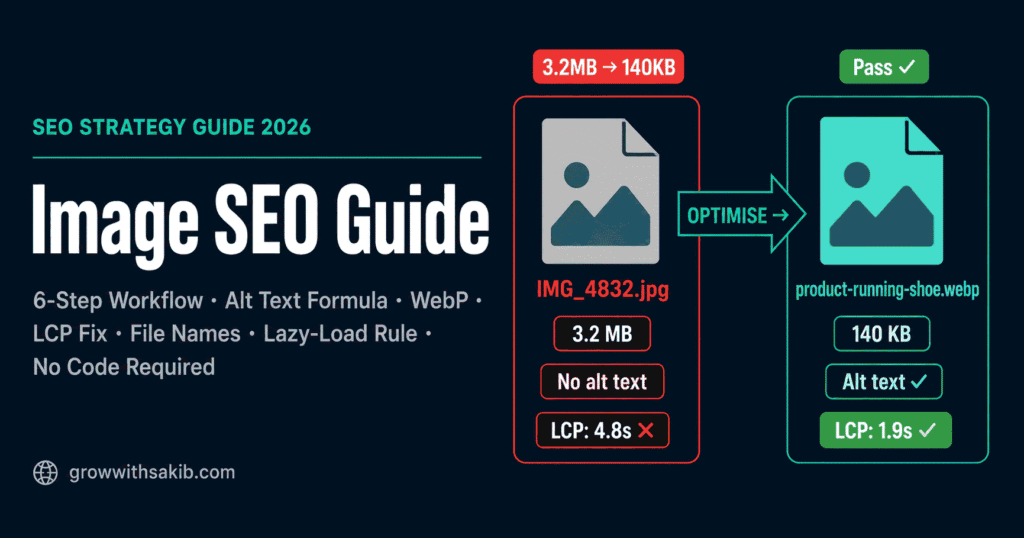
Most site owners spend hours on titles and content, then upload a photo called IMG_4832.jpg at 4MB with no alt text. That single habit quietly drags down page speed, fails accessibility, and leaves Google Images traffic on the table. Image SEO optimisation fixes all three at once — and it takes about ten minutes per page.
This guide gives you one repeatable workflow you can run on every image, with free tools and no developer required. It’s the image chapter of the broader small business SEO guide on GrowWithSakib, which mentions alt text as an on-page element — here we go deep and connect it to your site’s technical health.
Why Does Image SEO Matter?
Image SEO matters for three reasons that compound: speed, discovery, and accessibility.
- Speed — images are usually the heaviest thing on a page. Per Google Search Central’s image best practices, images are often the largest contributor to page size, which makes pages slow to load. Slow pages hurt rankings and conversions.
- Discovery — Google Images and Google Lens are real traffic channels. Optimised file names and alt text help your images surface for visual searches you’d otherwise never appear in.
- Accessibility — alt text is read aloud by screen readers, so good alt text is both an SEO signal and a legal/ethical requirement for users with visual impairments.
The speed angle is the big one for small businesses. Unoptimised images are one of the most common causes of a poor Largest Contentful Paint (LCP) score — and LCP is a Core Web Vitals metric Google uses for ranking. We’ll connect those dots throughout.
The 6-Step Per-Image Workflow
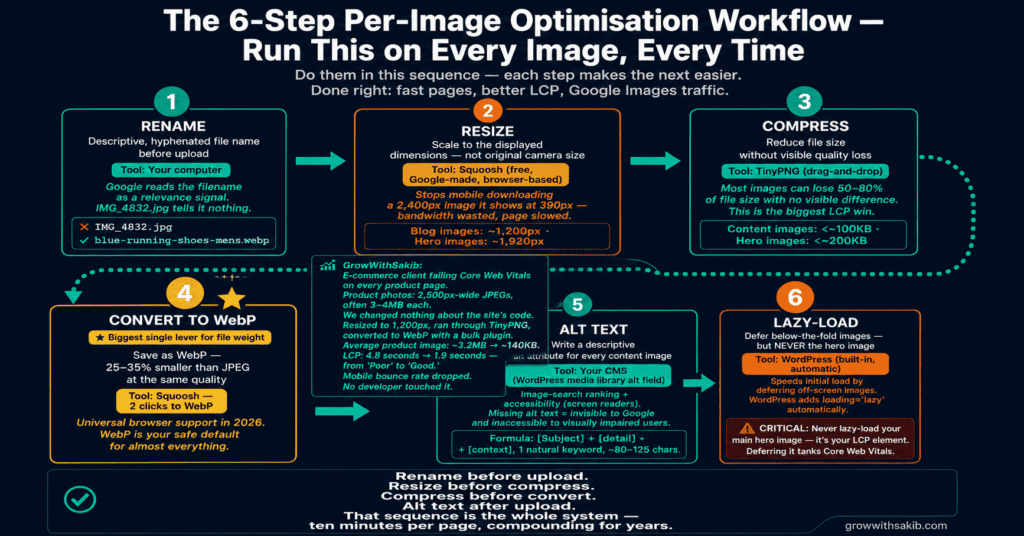
Most guides give you a scattered list of tips. This is the opposite: one ordered process you run on every image, every time. Do them in this sequence — each step makes the next easier.
| Step | Action | Why It Matters | Free Tool |
| 1. Rename | Descriptive, hyphenated file name | Google reads the filename as a relevance signal | Your computer |
| 2. Resize | Scale to the displayed dimensions | Stops mobile downloading desktop-sized images | Squoosh / Photopea |
| 3. Compress | Reduce file size without visible loss | Cuts page weight; improves LCP | TinyPNG |
| 4. Convert | Save as WebP | 25–35% smaller than JPEG at equal quality | Squoosh |
| 5. Alt text | Write a descriptive alt attribute | Image-search ranking + accessibility | Your CMS |
| 6. Lazy-load | Defer below-the-fold images | Speeds up initial load | WordPress (built-in) |
Step 1: Rename the File Descriptively
Google can’t see your image — it reads the file name as a clue to what the image shows. Before you upload, rename it using lowercase words separated by hyphens, including the keyword where it fits naturally.
| Bad File Name | Good File Name |
| IMG_4832.jpg | blue-running-shoes-mens-size-10.webp |
| DSC00021.png | small-business-seo-dashboard.webp |
| screenshot-final-v2.jpg | google-search-console-performance-report.webp |
Rule: use hyphens, not underscores or spaces. Google treats hyphens as word separators; underscores join words together.
Step 2: Resize to the Displayed Dimensions
Sending a 2,400px-wide image to a phone that displays it at 390px wastes bandwidth and slows the page. Resize the image to roughly the largest size it’s actually shown at. For a blog body image, 1,200px wide is usually plenty; for a full-width hero, 1,920px.
Free tools like Squoosh (made by Google) let you resize in the browser with no install. For sites serving many screen sizes, responsive images via srcset let the browser pick the right size — that part may need a plugin or developer, which we’ll flag honestly below.
Step 3: Compress Without Visible Quality Loss
Compression strips invisible data to shrink the file. Most images can lose 50–80% of their file size with no visible difference. The most popular free tools are TinyPNG (drag-and-drop, handles PNG and JPEG) and ShortPixel (which has a free tier and a WordPress plugin that compresses automatically on upload).
Target: aim for content images under ~100KB and hero images under ~200KB where quality allows. There’s no hard rule, but if a single image is over 500KB, it almost certainly needs compression.
Step 4: Convert to WebP
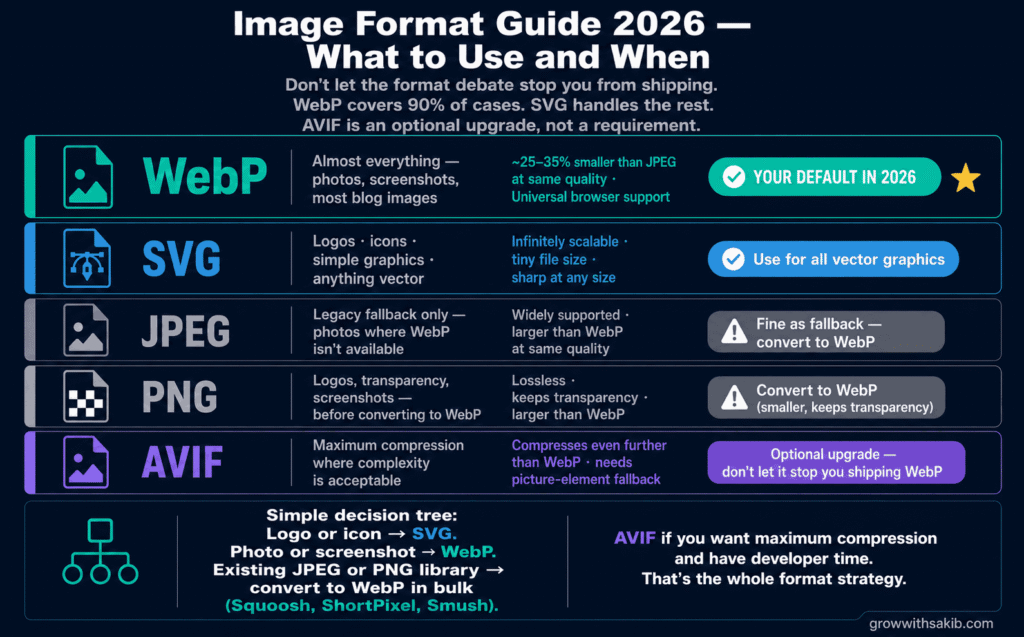
Format choice is the single biggest lever for image weight. In 2026, WebP is the safe universal default — it produces files roughly 25–35% smaller than JPEG at the same quality, with support in every modern browser. Google Search Central lists WebP among its supported formats.
| Format | Best For | Verdict for Small Business |
| JPEG | Photos (legacy) | Fine as a fallback, but convert to WebP |
| PNG | Logos, transparency, screenshots | Convert to WebP (smaller, keeps transparency) |
| WebP | Almost everything | ✅ Your default in 2026 |
| AVIF | Maximum compression | Optional upgrade; needs picture-element fallback |
| SVG | Logos, icons, simple graphics | Use for vector graphics — tiny and sharp |
Simple rule: convert photos and screenshots to WebP; keep logos and icons as SVG. Squoosh converts to WebP in two clicks. Don’t agonise over AVIF — it saves a little more but adds complexity most small sites don’t need.
Step 5: Write Descriptive Alt Text
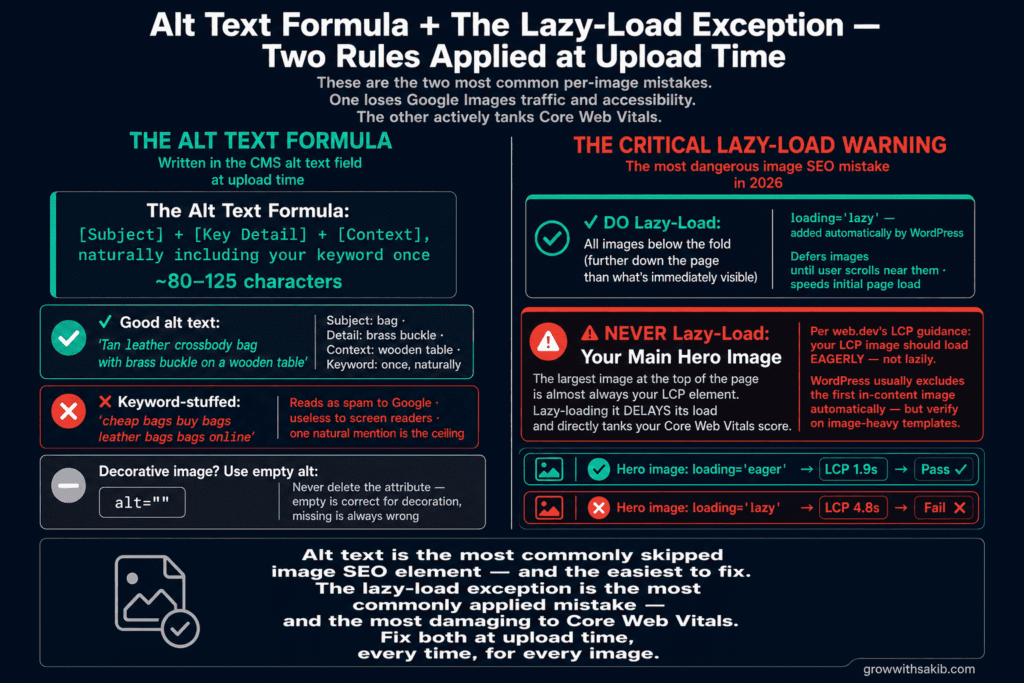
Alt text is a short written description inside the image’s alt attribute. It’s read aloud by screen readers, shown when an image fails to load, and used by Google to understand what the image depicts. It’s consistently the highest-impact image SEO element — and the most commonly done badly.
The alt text formula:
The decorative-image exception: if an image is purely decorative — a background flourish, a divider line — give it an empty alt attribute (alt=””). This tells screen readers to skip it. Never delete the alt attribute entirely; empty is correct for decoration, missing is always wrong.
Don’t keyword-stuff. alt=”cheap shoes buy shoes running shoes shoes online” reads as spam to Google and is useless to a screen-reader user. One natural keyword mention is the ceiling. For how alt text fits the wider on-page picture, see the on-page SEO checklist on GrowWithSakib.
Step 6: Lazy-Load Below-the-Fold Images
Lazy loading defers off-screen images until the user scrolls near them, so the initial page load is faster. Modern WordPress adds loading=”lazy” to images automatically, so for most small business sites this is already handled.
The No-Code WordPress Path
If you’re on WordPress and don’t want to touch code, here’s the whole workflow as a plugin-and-tool stack a non-developer can set up today:
- Before upload: rename the file descriptively, then resize + convert to WebP in Squoosh
- On upload: an image plugin like ShortPixel or Smush compresses automatically and can bulk-convert your existing library to WebP
- Alt text: fill the Alt Text field in the WordPress media library every time — it’s right there in the upload panel
- Lazy loading: handled automatically by WordPress core; just don’t disable it
- Caching/CDN (optional): Cloudflare’s free tier serves images from global edge locations for faster delivery
For the broader WordPress configuration this fits into, see the WordPress SEO setup guide on GrowWithSakib.
Do You Need an Image Sitemap?
An image sitemap lists your image URLs so Google can find images it might otherwise miss — useful for images loaded via JavaScript or galleries. Per Google Search Central, you can submit image information to help Google discover images it wouldn’t find on its own.
For most small business WordPress sites, you don’t need to build one manually. SEO plugins like Yoast and Rank Math automatically include images in your XML sitemap. If you run a custom site or a heavy image gallery that loads via JavaScript, a dedicated image sitemap is worth adding.
Image SEO Myths to Ignore
Plenty of image SEO advice is recycled from 2015 and wastes your time. Here’s what you can safely skip:
- EXIF metadata for general SEO — Google has said it may use EXIF in some cases, but the practical impact for most sites is negligible. Geolocation EXIF can help niche local search (real estate, travel), but don’t spend time editing camera metadata for a typical business site.
- The title attribute — the image title attribute (the tooltip on hover) is not a meaningful ranking signal and isn’t reliably read by screen readers. Put your effort into alt text instead.
- Keyword-stuffed alt text — cramming keywords into alt text hurts more than it helps. One natural mention, describing the image accurately, is the goal.
- Obsessing over AVIF — AVIF is great, but WebP captures most of the benefit with far less hassle. Don’t let the format debate stop you from shipping.
Honest Limits: What Image SEO Can’t Do
Image optimisation is high-leverage, but be realistic:
- Alt text won’t rescue weak content — if the page itself doesn’t answer the query, perfect images won’t make it rank.
- Image traffic varies hugely by niche — recipes, products, travel, and design pull strong Google Images traffic; B2B service pages pull very little. Set expectations to your niche.
- Compression has a floor — push it too far and images look blurry, which hurts trust and conversions. Optimise for the smallest file that still looks sharp.
- Some steps benefit from a plugin or developer — responsive srcset, the picture element, and image schema are worth it on image-heavy sites but aren’t strictly required for the basics.
Image optimisation is one of the fastest ways to improve your Core Web Vitals and technical SEO health, since oversized images are the most common cause of a poor LCP score. Pair this workflow with the guide to tracking SEO results on GrowWithSakib to confirm your speed and image-traffic gains.
Common Image SEO Mistakes
| Mistake | Why It Hurts | Do This Instead |
| Uploading IMG_1234.jpg | Google gets no relevance signal from the filename | Rename descriptively with hyphens before upload |
| Serving 3MB+ images | Tanks LCP and mobile experience | Resize, compress, and convert to WebP (under ~150KB) |
| Missing alt text | Loses image-search ranking and fails accessibility | Write descriptive alt text for every content image |
| Keyword-stuffed alt text | Reads as spam; useless to screen readers | One natural keyword mention; describe accurately |
| Lazy-loading the hero image | Delays the LCP element; fails Core Web Vitals | Load the main hero eagerly; lazy-load the rest |
| Using CSS background images for content | Google doesn’t index CSS images | Use HTML <img> elements for images that should rank |
| Scaling big images with CSS | Browser still downloads the full-size file | Resize the actual file to displayed dimensions |
Frequently Asked Questions
1. What is image SEO optimisation?
Image SEO optimisation is the process of preparing images so they load fast and rank well in search. It covers descriptive file names, resizing, compression, modern formats like WebP, alt text, lazy loading, and image sitemaps. Done well, it improves page speed and Core Web Vitals, earns traffic from Google Images and Google Lens, and makes your content accessible to screen-reader users.
2. How do I write good alt text for SEO?
Describe what’s actually in the image, starting with the subject, adding key detail and context, and naturally including your keyword once. Keep it roughly 80–125 characters and skip “image of”. For example: “Tan leather crossbody bag with brass buckle on a wooden table”. For purely decorative images, use an empty alt attribute (
alt=””) so screen readers skip them.
3. What is the best image format for SEO in 2026?
WebP is the safe default for almost everything in 2026 — it’s about 25–35% smaller than JPEG at the same quality with universal browser support. Use SVG for logos and icons. AVIF compresses even further but adds complexity, so treat it as an optional upgrade rather than a requirement for a small business site.
4. How small should image files be?
Aim for content images under about 100KB and hero images under about 200KB, where quality allows. There’s no hard rule, but any single image over 500KB almost certainly needs compression. Resize to the displayed dimensions first, then compress with a tool like TinyPNG, then convert to WebP — that combination usually cuts file size by 70% or more.
5. Do images really affect SEO and rankings?
Yes, in two ways. Unoptimised images slow your page down, and page speed is a confirmed Google ranking factor — images are a leading cause of poor Largest Contentful Paint. Optimised file names and alt text also help your images rank in Google Images and Google Lens, which are real traffic channels. Per Google Search Central, images are often the largest contributor to page size.
6. Do I need a plugin to optimise images on WordPress?
Not strictly, but a plugin makes it far easier. You can rename, resize, and convert to WebP manually with free tools like Squoosh before uploading. A plugin like ShortPixel or Smush automates compression and bulk-converts your existing library to WebP on upload. WordPress also adds lazy loading automatically, so much of the workflow is built in.
7. Should I lazy-load all my images?
Lazy-load below-the-fold images, but never lazy-load your main hero image. The largest image at the top of the page is often your LCP element, and deferring it delays load and hurts Core Web Vitals. Per web.dev, the LCP image should load eagerly. WordPress usually excludes the first in-content image from lazy loading automatically.
8. Does EXIF data matter for image SEO?
For most sites, no. Google has said it may use EXIF metadata in some cases, but the practical impact in 2026 is negligible for general image SEO. Geolocation EXIF can help niche local search like real estate or travel, but for a typical business site, your time is far better spent on descriptive file names, alt text, and compression.
Key Takeaways
- Run the 6-Step Per-Image Workflow on every image: Rename → Resize → Compress → Convert (WebP) → Alt text → Lazy-load.
- Rename files descriptively with hyphens before upload — Google reads the filename as a relevance signal.
- WebP is the safe default format in 2026: ~25–35% smaller than JPEG at equal quality, with universal browser support.
- Write alt text using the formula [subject] + [detail] + [context], one natural keyword, ~80–125 characters; use empty alt=” for decorative images.
- Unoptimised images are a leading cause of poor LCP — resize, compress, and convert to fix Core Web Vitals without code.
- Never lazy-load your main hero image; it’s often the LCP element and deferring it tanks your Core Web Vitals.
- Ignore the myths: EXIF data, the title attribute, and keyword-stuffed alt text don’t help — and stuffing actively hurts.
- On WordPress, a free tool (Squoosh) plus a compression plugin (ShortPixel/Smush) runs the whole workflow with no code.