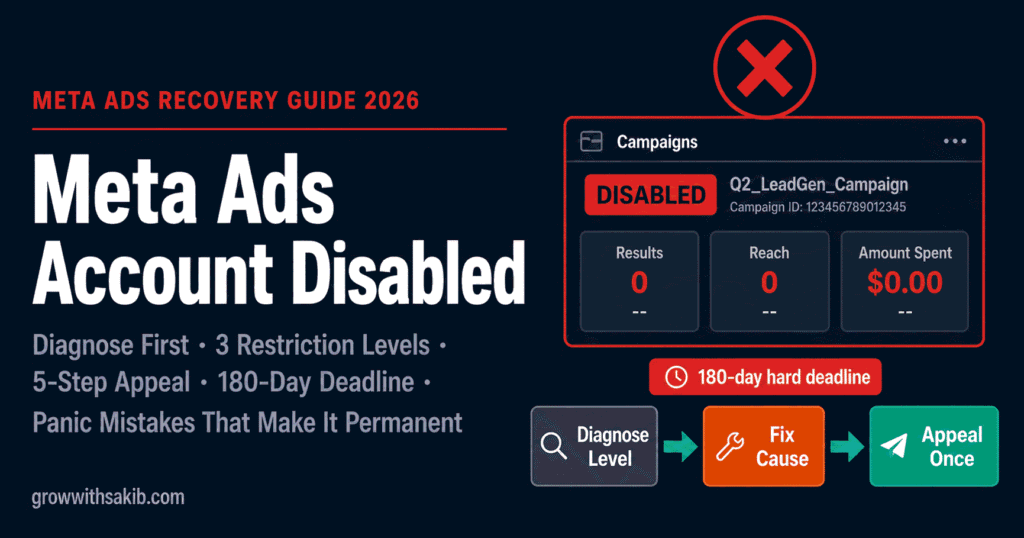
Few things in digital marketing feel worse than logging into Ads Manager and seeing your account is disabled. Campaigns stopped, revenue gone, and often no clear reason given. The panic is immediate — and panic is exactly what causes most people to make the situation permanent.
Here is the most important thing to understand before you do anything: recovery is a diagnosis-first process, not an appeal-first one. The advertisers who recover fastest are not the ones who appeal hardest — they are the ones who correctly identify what was actually disabled, fix the real cause, and then appeal once, professionally. The ones who lose their accounts forever are usually the ones who panicked and started clicking.
This guide walks you through the whole recovery: how to diagnose which asset is restricted, why Meta disables accounts in 2026, the appeal process that actually works, the panic mistakes that cause permanent bans, what survives a ban, and how to build an account that never gets disabled again.
Step One: Diagnose What’s Actually Disabled
Before you appeal anything, you must know which asset Meta restricted. This single diagnosis dictates your entire recovery strategy — and appealing the wrong asset wastes one of your limited review attempts. There are three distinct levels, and they are not interchangeable.
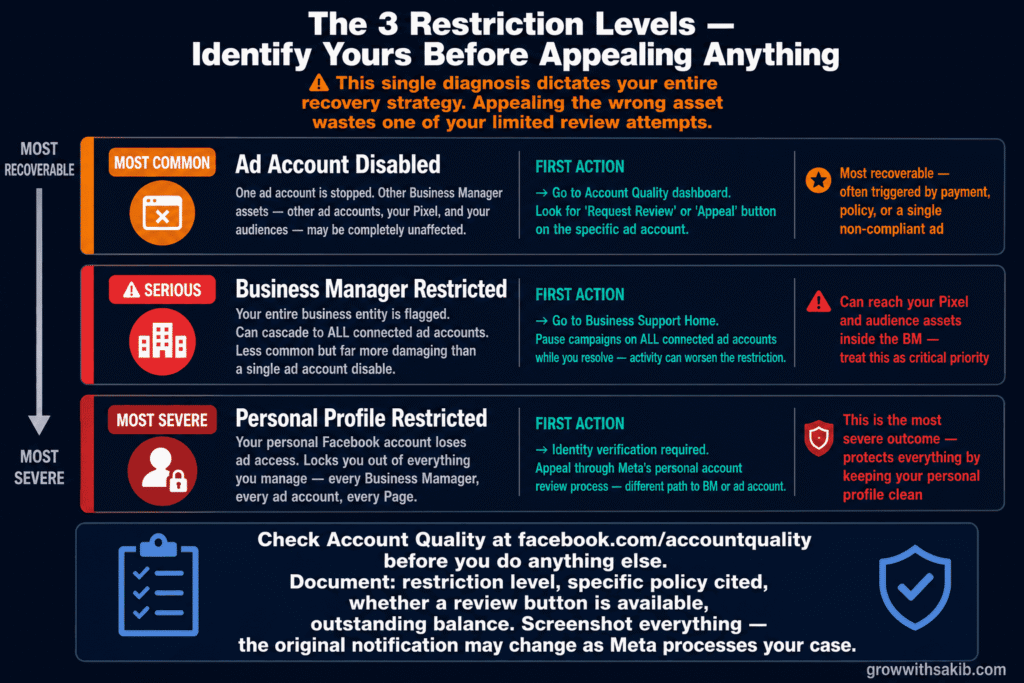
The three levels of restriction
As AdStellar’s recovery guide stresses, knowing which asset got hit is everything — you cannot fix a personal profile ban with an ad account appeal, so this first step dictates your entire strategy. Log into the Account Quality dashboard (now within Business Support Home) to see exactly what was restricted and why.
| Level | What It Means | Severity |
|---|---|---|
| Ad account disabled | One ad account is stopped; other assets may be fine | Most common; often recoverable |
| Business Manager restricted | The entire business entity is flagged | Serious; can cascade to all connected ad accounts |
| Personal profile restricted | Your personal account loses ad access | Severe; locks you out of everything you manage |
As AdStellar notes, a Business Manager restriction is when Meta flags your entire business entity — less common, but it can happen after repeated ad account bans or if their system suspects fraudulent activity. A personal profile advertising restriction is the most severe: if your personal profile gets hit, you are locked out of everything you manage. Identify the level first, because each has a different appeal path.
Why Meta Disables Accounts in 2026
Understanding why Meta disables accounts is not academic — it is the key to a successful appeal. And the reason has shifted in 2026 in a way most advertisers do not realise.
It’s about regulators, not punishment
As Audit Socials explains, the critical context most guides miss is that Meta does not disable accounts to punish advertisers — it disables them to protect its user experience and regulatory standing. In 2026, Meta faces pressure from the EU Digital Services Act, the US FTC’s updated advertising guidelines, and consumer-protection agencies across more than 40 countries. Every disabled account is Meta demonstrating compliance to regulators. Understanding this motivation is the key to crafting a successful appeal — you are not begging forgiveness, you are showing you are not a compliance risk.
The common triggers
As Sanrovax’s recovery guide notes, the suspension is rarely about your ad copy alone — it is usually triggered by your business verification status, your payment method, suspicious login activity, your landing page content, or even your Business Manager’s age.
- Payment issues: a failed charge, a flagged card, or a billing mismatch can trigger a restriction on its own.
- Business verification gaps: an unverified or partially verified business is far more likely to be flagged. Complete Meta Business Manager verification before running any campaigns — it is the single fastest way to raise your trust tier.
- Policy violations in ads or landing pages: prohibited claims, mismatched landing pages, or restricted-category issues — including the Meta Ads learning phase violations that come from making edits that reset delivery during sensitive campaign windows.
- Suspicious activity: logins from new locations or devices, sudden spend spikes, or shared access patterns that look fraudulent.
- Authenticity and history: a brand-new Business Manager with no track record carries less trust and is flagged more readily.
What Survives a Ban: Your Pixel and Audiences Are Safe
Before the panic sets in, here is a crucial piece of reassurance that most guides leave out and that changes how you should think about recovery. Even if an ad account is gone for good, your most valuable assets usually survive.
As AdStellar reassures, your Meta Pixel is an asset that belongs to your Business Manager, not to any single ad account — a crucial detail that prevents total catastrophe. Even if an ad account is disabled permanently, the pixel and all its data (your event tracking, custom audiences, and lookalikes) are safe inside your Business Manager. You can share that same pixel with a backup or new ad account and get right back to tracking and retargeting.
This is exactly why the structure you build matters so much, and why we cover it in the Business Manager setup guide. A properly organised Business Manager keeps your Meta Ads pixel, audiences, and campaigns protected from single-account failures.
How to Appeal: The Process That Actually Works
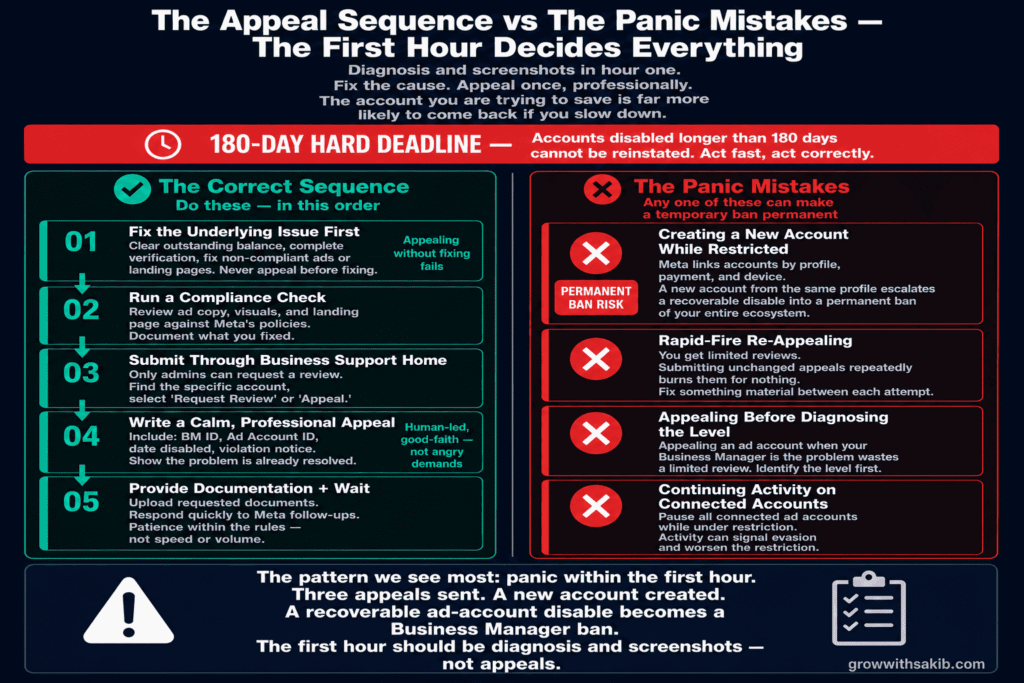
Once you have diagnosed the level and understood the likely cause, the appeal itself follows a specific sequence. The order matters — fixing before appealing dramatically raises your odds, and only admins can submit a review.
The recovery sequence
- Fix the underlying issue first. As Sanrovax advises, resolve the actual cause before appealing — clear any outstanding balance, complete verification, secure your account, and edit any non-compliant ads or landing pages. Appealing without fixing the cause almost always fails.
- Run your ads through a compliance check. As Leadsie recommends, run your ad copy and visuals through a compliance checklist, make edits if necessary, then appeal with that documentation. Show Meta the problem is already resolved.
- Submit the review through Business Support Home. Go to Meta’s Business Support Home and select your restricted account, then choose ‘Request review’ — only admins can submit, and you should have completed all compliance fixes before this step.
- Write a calm, professional, human-led appeal. As AdAmigo advises, keep your appeal statement clear, professional, and focused on resolving the issue — provide your Business Manager ID, Ad Account ID, the date disabled, and any violation notices. Signal a human-led, good-faith recovery, not an angry demand.
- Provide documentation and wait. Upload any requested documents (business details, identity, payment proof), double-check everything, submit, and monitor for follow-up requests. Respond quickly to anything Meta asks for.
How to Make Sure It Never Happens Again
Recovering a disabled account is stressful and uncertain. The far better position is to build an account Meta has little reason to flag in the first place. Prevention is mostly about structure, verification, and trust — not luck.
The prevention architecture
- Complete business verification properly. A verified business carries far more trust and is flagged less readily. This is the foundation of a higher trust tier.
- Build a proper Business Manager hierarchy. Separate assets correctly so a single ad-account issue cannot cascade — the full structure is in the Meta Ads Guide.
- Use reliable, verified payment methods. As AdAmigo recommends, maintain two to three active credit cards from different issuers, each with available credit, so a single payment failure cannot trigger a restriction.
- Keep ads and landing pages compliant. Match landing pages to ads, avoid prohibited claims, respect Meta’s advertising policies for restricted categories, and check your Meta ad formats comply with placement-specific rules.
- Run regular compliance reviews. Catch policy issues before Meta’s AI does. A periodic Meta Ads account audit covering your ads, landing pages, and Business Manager permissions is the most reliable prevention tool available.
As Birch concludes, running effective Meta ads comes down to staying compliant and keeping your account healthy. The advertisers who never face a disable are not lucky — they have built verification, structure, and clean practices that keep their trust tier high and give Meta no reason to act. The
6 Mistakes That Turn a Disable Into a Disaster
Mistake 1: Appealing before diagnosing the level
Appealing the wrong asset — an ad account when your Business Manager is the problem — wastes one of your limited reviews. Always confirm what’s actually restricted in Account Quality first, because each level has a different path.
Mistake 2: Appealing before fixing the cause
An appeal that doesn’t show the underlying issue is resolved almost always fails. Clear balances, complete verification, and fix non-compliant ads or landing pages first — then appeal with evidence the problem is gone.
Mistake 3: Creating a new account while restricted
This is the single most dangerous move. A new account from the same profile or payment method while under restriction can escalate a recoverable ad-account disable into a permanent ban of your entire business ecosystem.
Mistake 4: Rapid-fire re-appealing
You get a limited number of reviews. Submitting the same unchanged appeal repeatedly burns them for nothing. Space your attempts and fix something material between each, or you’ll exhaust your options.
Mistake 5: Missing the 180-day deadline
Accounts disabled longer than 180 days cannot be reinstated. Procrastination becomes permanent loss. Even if you’re unsure of the cause, start the diagnosis and appeal process well within the window.
Mistake 6: Building everything inside one ad account
If your pixel, audiences, and campaigns all live in a single ad account with no separation, losing it loses everything. Build a proper Business Manager structure with separate ad accounts, portfolio-level pixel assets, and a backup account — so a single account disable never takes everything down with it.
Frequently Asked Questions
Why was my Meta ads account disabled?
Usually for a payment issue, an incomplete business verification, a policy violation in your ads or landing page, suspicious login activity, or a low-trust/new Business Manager. As Sanrovax notes, it’s rarely about ad copy alone. In 2026, Meta also disables accounts to satisfy regulators like the EU Digital Services Act and FTC — so a disable signals you’ve been flagged as a compliance risk, not necessarily that you did something egregious.
How do I reinstate a disabled Meta ad account?
Diagnose which asset is restricted via Account Quality, fix the underlying cause (payment, verification, or compliance), then submit a review through Business Support Home — selecting the account and choosing ‘Request review.’ Only admins can appeal, and you must do so within 180 days. Write a calm, professional appeal with your account IDs and evidence the issue is resolved.
How long do I have to appeal a disabled account?
180 days. As Birch confirms, accounts that have been disabled for more than 180 days cannot be reinstated. Some notifications also specify a shorter timeframe for the initial appeal, so act quickly — start the diagnosis and review process as soon as you discover the restriction rather than waiting, because the deadline is a hard limit with no exceptions.
Will I lose my pixel and audiences if my account is banned?
Usually not. As AdStellar explains, your Meta Pixel belongs to your Business Manager, not to a single ad account — so even if an ad account is permanently disabled, the pixel and its data (custom audiences, lookalikes, event history) survive inside your Business Manager and can be shared with a backup account. The exception is a Business Manager or personal profile ban, which can reach those assets.
Can I create a new account if mine is disabled?
No — not while you’re under restriction. As Sanrovax warns, creating a new account is one of the fastest ways to escalate a temporary suspension into a permanent ban of your entire business ecosystem. Meta links accounts by profile, payment method, and device. Work through the official appeal process on the existing account instead; a new account is treated as evasion.
How long does a Meta account appeal take?
It varies — from a few days to several weeks, and sometimes multiple properly-spaced attempts. As SuperAds notes, Meta support can be slow and may not engage until a formal review is submitted. Live chat, where available in your region, is often fastest for urgent cases. A correctly fixed and well-documented appeal recovers faster than repeated emotional ones, but patience within the rules is essential.
How do I stop my account being disabled again?
Raise your trust tier: complete business verification, build a proper Business Manager hierarchy, use multiple reliable payment methods, keep ads and landing pages compliant, and run regular account audits for policy health. As Birch concludes, effective Meta advertising comes down to staying compliant and keeping your account healthy — prevention is structural, not luck.
Key Takeaways
- Diagnose before you appeal. Identify whether the ad account, Business Manager, or personal profile is restricted via Account Quality — each has a different path, and appealing the wrong asset wastes a limited review.
- Meta disables to satisfy regulators, not to punish you. In 2026, under DSA and FTC pressure, a disable means you’ve been flagged as a compliance risk. Frame your appeal as showing you’re not one.
- Fix the cause, then appeal once, professionally. Clear balances, complete verification, fix non-compliant ads, then submit a calm, documented review through Business Support Home. Appealing without fixing fails.
- Never create a new account while restricted. It’s the fastest way to escalate a recoverable ad-account disable into a permanent ban of your whole ecosystem. Meta links accounts by profile, payment, and device.
- Your pixel and audiences usually survive. They live in the Business Manager, not the ad account, so an ad-account ban doesn’t erase your tracking and audiences — provided you built a proper structure.
- Mind the 180-day deadline. Accounts disabled longer than 180 days cannot be reinstated. Speed matters — start diagnosis and appeal as soon as you discover the restriction.
- Raise your trust tier to prevent recurrence. Verification, proper Business Manager hierarchy, reliable payment methods, and compliant creative keep Meta from flagging you in the first place.
- Build resilience before you need it. A verified Business Manager, a backup ad account, and portfolio-level assets turn a future disable from a catastrophe into a manageable interruption.