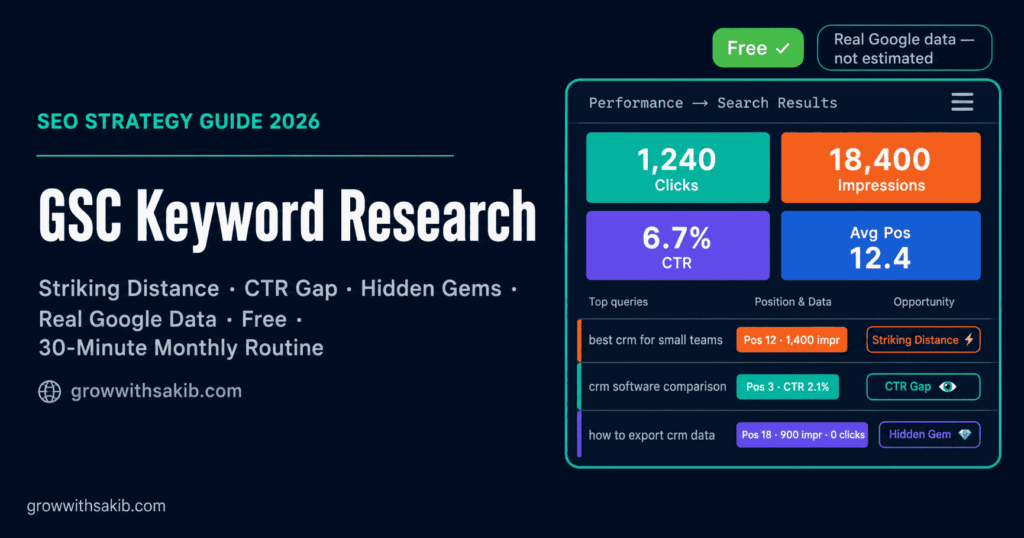
Most keyword research advice assumes you’ll pay $99+ a month for a tool. You don’t have to. Google Search Console keyword research uses real data — the actual searches that already show your site to people — and it costs nothing.
The catch is that most guides give you the same shallow tip: ‘sort by impressions and look at page two.’ That’s a start, but it leaves the real wins on the table. This guide gives you a repeatable system for turning your own GSC data into a prioritised list of keyword opportunities.
This is part of the broader small business SEO guide on GrowWithSakib. If you’re brand new to the tool itself, start with the complete guide to using Google Search Console first, then come back here for the keyword-research workflow.
Why Use Google Search Console for Keyword Research?
Google Search Console (GSC) is a free tool that shows how your site performs in Google Search. For keyword research, its advantage over paid tools is simple: the data is real, not estimated. According to Google Search Central’s documentation, the Performance report shows the actual queries that triggered your pages, your real average position, and your real click-through rate.
Paid tools like Ahrefs and Semrush estimate search volume and difficulty using third-party models. GSC shows you what’s actually happening on your site right now. The two approaches complement each other — but if budget is tight, GSC alone gets you surprisingly far, especially when paired with the free-tool workflow in the keyword research guide.
| Google Search Console | Paid Tools (Ahrefs, Semrush) |
| Cost: Free | $99–$499+/month |
| Data source: Real Google data for your site | Estimated / modelled |
| Search volume: No (impressions are a proxy) | Yes |
| Keyword difficulty: No | Yes |
| New-niche research: Weak (needs existing rankings) | Strong |
| Quick-win discovery: Excellent | Good |
Before You Start: The 30-Second Setup
Open Google Search Console, select your property, and go to Performance → Search Results. Then configure the view so you can actually see the keyword data:
- Set the date range to the last 3 months (enough data, recent enough to be relevant)
- Click the Average CTR and Average Position tiles to switch those columns on
- Scroll down to the Queries tab — this is your keyword goldmine
- Sort by Impressions (descending) to see your most-visible searches first
Now you can see, for every query: how often you appeared (impressions), how often you were clicked (clicks), your click-through rate (CTR), and your average position. Those four numbers power the entire system below.
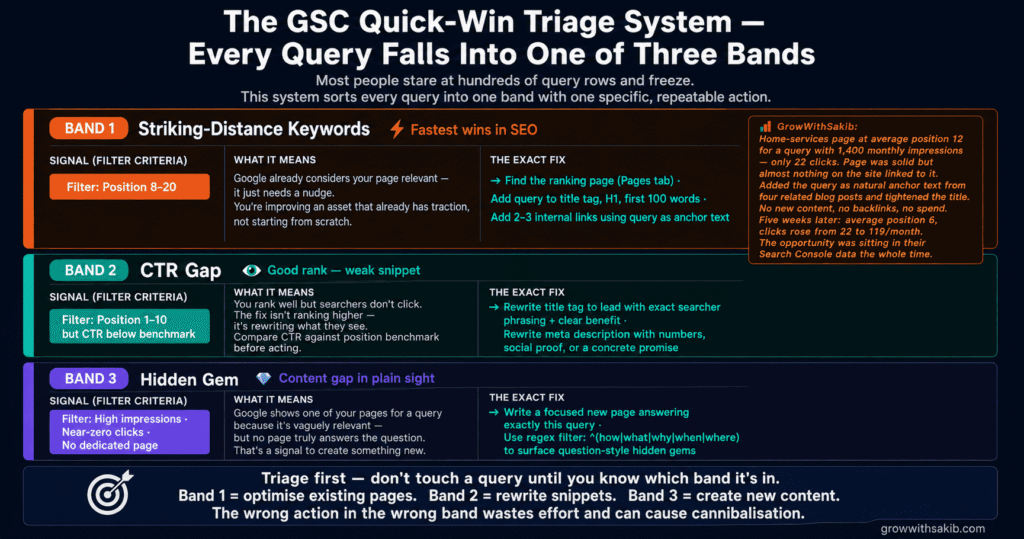
The GSC Quick-Win Triage System
Most people stare at hundreds of query rows and freeze. The Triage System sorts every query into one of three buckets — each with a specific, repeatable action.
| Band | Signal | What It Means | The Fix |
| 1. Striking Distance | Position 8–20 | You’re close to page one but not there yet | On-page optimisation + internal links |
| 2. CTR Gap | Position 1–10 but low CTR | You rank well but the snippet isn’t earning clicks | Rewrite title tag + meta description |
| 3. Hidden Gem | High impressions, near-zero clicks, no dedicated page | Demand exists for a topic you haven’t properly covered | Create a new dedicated page |
Band 1: Striking-Distance Keywords (Positions 8–20)
Striking-distance keywords are queries where you already rank on the edge of page one — roughly positions 8 to 20. Google already considers your page relevant; it just needs a nudge to climb. These are the fastest wins in all of SEO because you’re improving an asset that already has traction.
To find them, add a position filter. In the Performance report, click + New → Position, then filter for position greater than 7. Combine it with a second filter for position smaller than 21. Sort the remaining queries by impressions — the top of that list is your priority queue.
The three-step striking-distance fix:
- Find the page that ranks for the query (use the Pages tab while the query filter is active)
- Make sure the exact query and close variants appear naturally in the title tag, H1, and first 100 words
- Add 2–3 internal links to that page from other relevant pages, using the query as descriptive anchor text
Why internal links work here: they pass relevance and authority to the target page, and they’re entirely in your control. For more on doing this well, see the on-page SEO checklist on GrowWithSakib.
Band 2: The CTR Gap (Good Position, Low Clicks)
Sometimes you already rank in the top 10 but barely get clicks. That’s a CTR gap — your position is fine, but your snippet isn’t compelling enough to win the click. The fix isn’t ranking higher; it’s rewriting what searchers see.
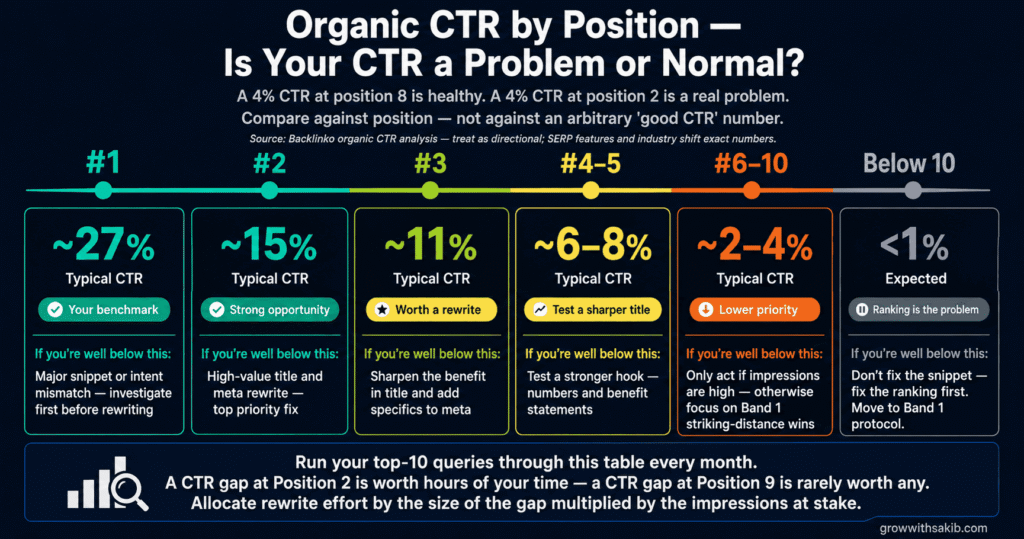
But here’s what competitors don’t tell you: low CTR is only a problem if it’s below what’s normal for your position. A 4% CTR at position 8 is healthy. A 4% CTR at position 2 is a real problem. Use this benchmark to judge.
| Average Position | Typical Organic CTR | If You’re Well Below This |
| 1 | ~27% | Major snippet or intent mismatch — investigate first |
| 2 | ~15% | Strong title/meta opportunity |
| 3 | ~11% | Worth a rewrite |
| 4–5 | ~6–8% | Test a sharper title |
| 6–10 | ~2–4% | Lower priority unless impressions are high |
These benchmarks come from Backlinko’s analysis of organic click-through rates, which found the #1 result earns roughly a 27% CTR while results lower on page one drop sharply. Treat them as directional — your industry and SERP features will shift the exact numbers.
The CTR-gap fix: rewrite the title tag to lead with the searcher’s exact phrasing and a clear benefit, then rewrite the meta description to add specifics — numbers, social proof, or a concrete promise. For a deeper method, see the guide to writing SEO titles and meta descriptions.
Band 3: Hidden Gems (Content Gaps)
The most overlooked opportunity in GSC is the hidden gem: a query with strong impressions and almost no clicks, where you don’t actually have a page dedicated to that topic. Google is showing one of your pages because it’s vaguely relevant — but no page truly answers the query. That’s a content gap, and a signal to create something new.
To find them, sort your Queries by impressions and scan for specific, multi-word phrases you’ve never deliberately written about. As the team at Search Engine Land notes, these unexpected queries — terms you never targeted but are ranking for anyway — often reveal entire content opportunities hiding in plain sight.
Tip — use a regex filter for question keywords: in the query filter, switch the match type to Custom (regex) and enter a pattern like ^(how|what|why|when|where|can|does|is). This surfaces every question-style query you appear for — a ready-made list of FAQ and blog-post ideas pulled straight from real searches, which also feed directly into AI Overview citations since question-format content is structurally easiest for AI engines to extract and cite.
Optimise an Existing Page or Create a New One?
Once you find a query worth acting on, you face one decision: improve the page that already ranks, or build a new dedicated page? Getting this wrong causes keyword cannibalisation — two of your pages competing for the same term, splitting your authority. Use this decision tree.
| Situation | Decision | Why |
| A relevant page already ranks (pos 8–20) for the query | Optimise the existing page | It already has traction; improving it is faster than starting over |
| Several pages rank weakly for the same query | Consolidate into one strong page | You’re cannibalising — pick the best page and redirect or merge the others |
| High impressions but only a loosely related page ranks | Create a new dedicated page | Google wants a focused answer you don’t yet have |
| The query is a close variant of a page’s main keyword | Optimise existing page | Adding a new page would compete with your own content |
Always run a cannibalisation check first. Add the query as a filter, switch to the Pages tab, and see how many of your URLs Google shows for it. If two or more pages appear with meaningful impressions, fix the overlap before optimising — otherwise you’ll keep splitting clicks between competing pages, undermining the topical authority the SEO for Small Business pillar’s cluster strategy depends on.
The Limit Competitors Won’t Mention: Data Redaction
Here’s something most GSC keyword-research guides quietly skip: Search Console doesn’t show you every query. To protect user privacy, Google removes (anonymises) queries that are rare or could identify individuals. When you apply filters, even more data gets redacted.
SEO consultant Andrew Cock-Starkey documented a striking example via Mark Williams-Cook: a site with 148,000 total clicks showed roughly 39,700 from branded terms and 30,800 from non-branded — leaving about 77,500 clicks unaccounted for, hidden by data redaction. That’s more than half the data simply not shown at the query level.
What this means for your keyword research: the queries you can see are real and trustworthy, but they’re an incomplete sample. Don’t assume a query has zero volume just because it’s missing. And for brand-new topics where you have no rankings yet, GSC has nothing to show you — that’s where paid tools or even free options like Google’s own autocomplete and ‘People also ask’ fill the gap.
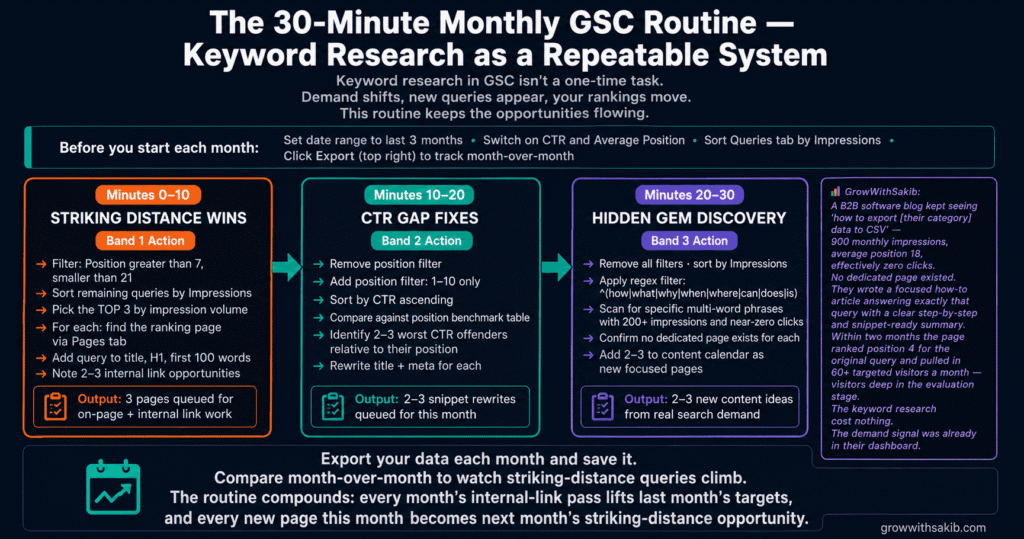
Your Repeatable 30-Minute Monthly Routine
Keyword research in GSC isn’t a one-time task. Demand shifts, new queries appear, and your rankings move. Here’s a simple monthly routine that keeps the opportunities flowing.
- Minutes 0–10: Filter for striking-distance queries (position 8–20), sort by impressions, pick the top 3 to optimise this month
- Minutes 10–20: Scan top-10 queries for CTR gaps using the benchmark table; rewrite titles/metas on the 2–3 worst offenders
- Minutes 20–30: Run the question regex filter, note 2–3 hidden-gem content gaps, and add them to your content calendar
Export the data each month (the Export button, top right) into a spreadsheet so you can compare month over month and watch your striking-distance queries climb. For how this fits your wider measurement habit, see the guide to tracking SEO results.
Common Mistakes (and How to Avoid Them)
| Mistake | Why It Hurts | Do This Instead |
| Optimising for high-impression queries you already rank well for | You can’t gain much; the win is small | Prioritise positions 8–20 where movement is easiest |
| Treating low CTR as bad at every position | A low CTR at position 9 is normal — you’ll waste time | Compare against the position-CTR benchmark first |
| Adding a new page for a query you already rank for | Causes keyword cannibalisation | Optimise the existing page; run a cannibalisation check |
| Trusting GSC as a complete keyword list | Data redaction hides 50%+ of queries | Treat visible queries as a strong sample, not the whole picture |
| Acting on 7-day data | Too noisy; positions fluctuate daily | Use a 3-month window for stable signals |
| Sorting only by clicks | You miss the high-impression, low-click opportunities | Sort by impressions to surface untapped demand |
Once you’ve built your keyword list from GSC, the next step is turning those terms into content that ranks. The guide to long-tail keywords on GrowWithSakib pairs naturally with this workflow, since most of your hidden gems will be specific long-tail phrases.
Frequently Asked Questions
1. Can you really do keyword research with only Google Search Console?
Yes — for any site that already ranks for some terms. Google Search Console keyword research surfaces striking-distance keywords, low-CTR pages, and content gaps using real Google data, completely free. Its limit is greenfield research: for brand-new topics where you have no rankings yet, pair GSC with autocomplete, ‘People also ask’, or a paid tool to discover terms you don’t yet appear for.
2. What are striking-distance keywords?
Striking-distance keywords are queries where your page already ranks near the edge of page one — roughly positions 8 to 20. Google already considers the page relevant, so small improvements (better title tags, internal links, slightly deeper content) can push it onto page one fast. They’re the highest-ROI opportunities in SEO because you’re improving an asset that already has traction.
3. Why do I have high impressions but low clicks?
High impressions with low clicks usually means one of two things: either you rank well but your title and meta description aren’t compelling (a CTR gap), or Google shows a loosely related page for a query you don’t truly answer (a content gap). Check your average position — if it’s strong, rewrite the snippet; if it’s weak and no dedicated page exists, create one.
4. How do I filter Google Search Console by position?
In the Performance → Search Results report, click + New → Position, then set a filter such as ‘Position greater than 7’. Add a second position filter (‘smaller than 21’) to isolate the striking-distance band. Sort the remaining queries by impressions to prioritise the ones with the most visibility and the biggest upside.
5. Why doesn’t Google Search Console show all my keywords?
Google anonymises rare queries to protect user privacy, and applying filters redacts even more data. In one documented case a site had over 77,000 clicks hidden at the query level. The queries you see are real and reliable, but they’re an incomplete sample — never assume a missing query has zero search volume.
6. Is Google Search Console better than Ahrefs or Semrush for keyword research?
They do different jobs. GSC shows real data for terms you already rank for, free, which is ideal for quick wins and content gaps. Ahrefs and Semrush estimate search volume and difficulty and excel at researching brand-new niches and competitors. For tight budgets, start with GSC; add a paid tool when you need volume data or greenfield discovery.
7. How do I find content gaps in Google Search Console?
Sort your Queries by impressions and look for specific, multi-word phrases with strong impressions but near-zero clicks where you have no dedicated page. Use a regex query filter like ^(how|what|why|when) to surface question-style searches. Each of these is a content idea pulled straight from real demand — write a focused page that answers the query directly.
8. How often should I do keyword research in GSC?
Once a month is plenty for most small businesses. A 30-minute routine — checking striking-distance queries, fixing CTR gaps, and noting new content gaps — keeps a steady pipeline of opportunities without obsessing over daily fluctuations. Use a 3-month date range each time so positions and impressions are stable enough to trust.
Key Takeaways
- Google Search Console keyword research is free and uses real Google data — ideal for any site that already ranks for some terms.
- Set up the view first: 3-month range, switch on CTR and Average Position, sort the Queries tab by impressions.
- Use the Quick-Win Triage System: Striking Distance (pos 8–20), CTR Gap (good position, low clicks), and Hidden Gem (content gaps).
- Striking-distance keywords (positions 8–20) are your fastest wins — fix on-page elements and add internal links.
- Judge low CTR against the position benchmark: 4% is healthy at position 8 but a problem at position 2.
- Before optimising any query, run a cannibalisation check in the Pages tab to avoid two pages competing for one term.
- Be honest about data redaction — GSC hides rare and filtered queries, so visible data is a strong sample, not the full picture.
- Build a repeatable 30-minute monthly routine and export your data to track striking-distance queries climbing over time.