If you own a website and want to grow your organic traffic, Google Search Console is the single most important free tool you can use. It shows you exactly how Google sees your site, which queries bring people to it, and which technical issues are holding you back.
The problem is that most tutorials throw 20 reports at you on day one. That is overwhelming. This guide walks you through Google Search Console in the order you will actually use it — from setup through to weekly monitoring — with clear guidance on what matters and what you can safely ignore.
If you are still building the foundations of your strategy, the complete small business SEO guide on GrowWithSakib gives you the bigger picture before you dive into the tooling.
What Is Google Search Console?
Google Search Console (often shortened to GSC) is a free service from Google that lets website owners see how their site performs in Google Search. According to the official Search Console documentation, it provides tools and reports for measuring search traffic, fixing technical issues, and making your site shine in Google Search results.
Three core capabilities make it essential:
- Performance data — see which queries trigger your pages in Google Search, your average position, and your click-through rate.
- Indexing data — see which pages Google has indexed, which it has excluded, and why.
- Technical health data — get alerts on Core Web Vitals issues, mobile usability problems, structured data errors, and security threats.
Google Search Console is different from Google Analytics 4. GSC tells you what happens before someone clicks (impressions, queries, rankings). GA4 tells you what happens after they click (sessions, engagement, conversions). You need both — they are two essential tools in your small business SEO toolkit.
How to Set Up Google Search Console
Setting up Google Search Console takes about 10 minutes if you have access to your domain’s DNS settings or your CMS admin. Go to search.google.com/search-console and sign in with the Google account you want to use for ownership.
Step 1: Choose Your Property Type
Google offers two property types, and choosing the right one matters. Most tutorials gloss over this — but the wrong choice limits what you can track later.
Property Type – Domain property
- What It Tracks — All subdomains and protocols under one roof (example.com, www.example.com, blog.example.com, https, http)
- Verification Method — DNS TXT record only
- Best For — Most small businesses — gives the cleanest, most complete picture
Property Type – URL-prefix property
- What It Tracks — Only the exact prefix you enter (e.g. https://www.example.com/)
- Verification Method — HTML file, HTML tag, GA4, GTM, or DNS
- Best For — Sites where you only want to track one subdomain or section; users who can’t edit DNS
If you can edit your DNS records, choose the Domain property. It captures everything in one place, which prevents the common headache of seeing partial data because traffic split across HTTP, HTTPS, www, and non-www versions.
Step 2: Verify Ownership
Verification proves to Google that you actually own the site. The method you can use depends on your hosting setup and the property type you picked.
- DNS TXT record — required for Domain properties. Copy the TXT record from GSC and add it to your DNS provider (Cloudflare, GoDaddy, Namecheap). Verification usually completes within an hour, though DNS propagation can take up to 48 hours.
- HTML file upload — download a file from GSC and upload it to the root directory of your site. Works for URL-prefix properties when you have FTP/cPanel access.
- HTML tag — add a meta tag to your homepage’s <head>. Most WordPress SEO plugins like Yoast SEO and Rank Math have a dedicated field for this — no code editing needed.
- Google Analytics — if you already have GA4 installed with the correct tracking code on your homepage, GSC can verify automatically.
- Google Tag Manager — works if GTM is installed in the <head> with the right snippet.
Step 3: Submit Your XML Sitemap
A sitemap is a file that lists all the URLs on your site you want Google to know about. According to Google Search Central’s sitemap guide, submitting one helps Google discover your content faster — especially for new sites or sites with deep internal page structures.
- In GSC’s left menu, click Sitemaps
- Enter your sitemap URL (usually /sitemap.xml or /sitemap_index.xml if you use Yoast or Rank Math)
- Click Submit — within minutes the status should change to ‘Success’
- Check back in 1–3 days to see how many URLs Google has discovered
The GSC Report Priority Framework
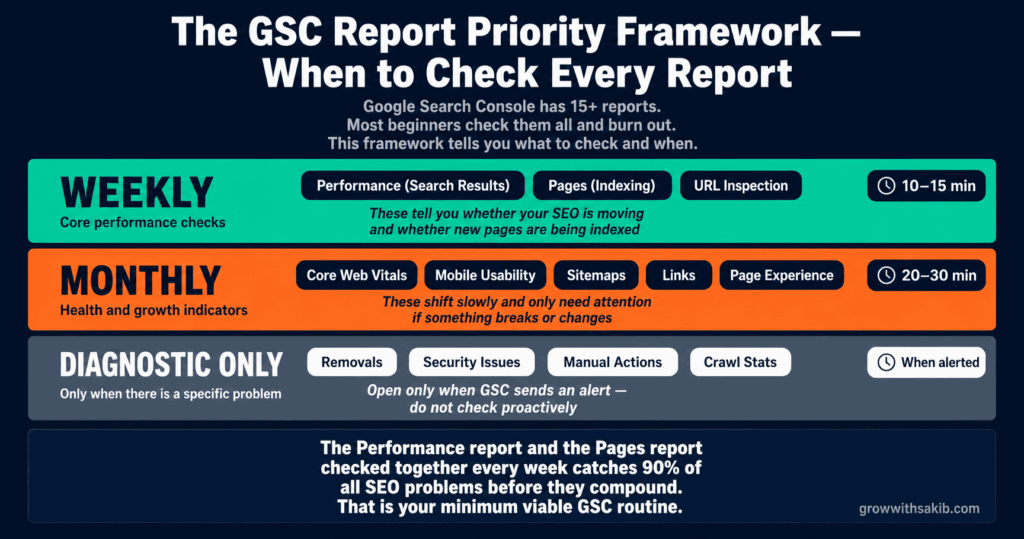
Google Search Console has more than 15 reports. Most beginners try to check them all and burn out. Here is a usage framework that organises every report into how often you actually need to look at it.
| Frequency | Reports | Why |
| Weekly | Performance (Search Results), Pages (Indexing), URL Inspection | These tell you whether your SEO is moving and whether new pages are being indexed |
| Monthly | Core Web Vitals, Mobile Usability, Sitemaps, Links, Page Experience | These shift slowly and only need attention if something breaks |
| Diagnostic only | Removals, Crawl Stats, Security Issues, Manual Actions, Schema-specific reports | Only matter when there’s a specific problem or alert — don’t check proactively |
How to Use the Performance Report
The Performance report is where most of the actionable SEO insight lives. Open it via Performance → Search Results in the left menu. By default it shows you the last three months of total clicks and total impressions across all your pages.
Four core metrics drive everything in this report:
01 Metric – Total Clicks
- What It Means — How many times someone clicked your result in Google Search
- Healthy Range for Small Sites — Trending up over 90 days
02 Metric – Total Impressions
- What It Means — How often any of your pages appeared in search results
- Healthy Range for Small Sites — Trending up — even faster than clicks early on
03 Metric – Average CTR
- What It Means — Clicks divided by impressions — how compelling your snippets are
- Healthy Range for Small Sites — 1.5–3% for non-branded queries; 5–15%+ for branded
04 Metric – Average Position
- What It Means — Where your pages rank on average across all triggered queries
- Healthy Range for Small Sites — Lower number is better; treat this as directional, not absolute
Filtering the Performance Report
The single most powerful feature of this report is filtering. Without filters, you only see averages. With filters, you find the exact pages and queries to fix.
- Filter by Query — type a keyword to see how a specific search term performs across your site.
- Filter by Page — paste a URL to see every query that triggers that page.
- Filter by Country / Device — useful if your audience is concentrated geographically or if mobile performance is suspiciously different from desktop.
- Compare date ranges — compare the last 28 days vs. the previous 28 days to spot real trends rather than seasonal noise.
Finding Quick-Win Ranking Opportunities
One of the highest-leverage uses of GSC is finding pages stuck in positions 5–15. Research from Backlinko’s analysis of Google CTR data shows that moving from position 8 to position 3 can multiply your click-through rate by roughly 3x — without writing a single new article.
- In the Performance report, click + New → Position filter
- Set position greater than 5 and add another filter for position less than 15
- Switch to the Pages tab to see which URLs sit in that range
- Sort by impressions descending — these are your highest-priority fix candidates
- For each, review the title tag, meta description, content depth, and keyword research to confirm the page targets the right query.
How to Use the Pages (Indexing) Report
The Pages report — found under Indexing → Pages — shows which of your URLs Google has indexed and which it has excluded. If a page is not in the indexed list, it cannot rank, no matter how good the content is.
Understanding the Two Status Buckets
- Indexed — these pages are eligible to appear in Google Search results. Aim for as many of your important URLs as possible to be here.
- Not indexed — these are excluded, with a reason listed. Some exclusions are intentional (a tag page you noindexed). Others are problems.
Common ‘Not Indexed’ Reasons and How to Fix Them
| Error / Status | What It Means | How to Fix |
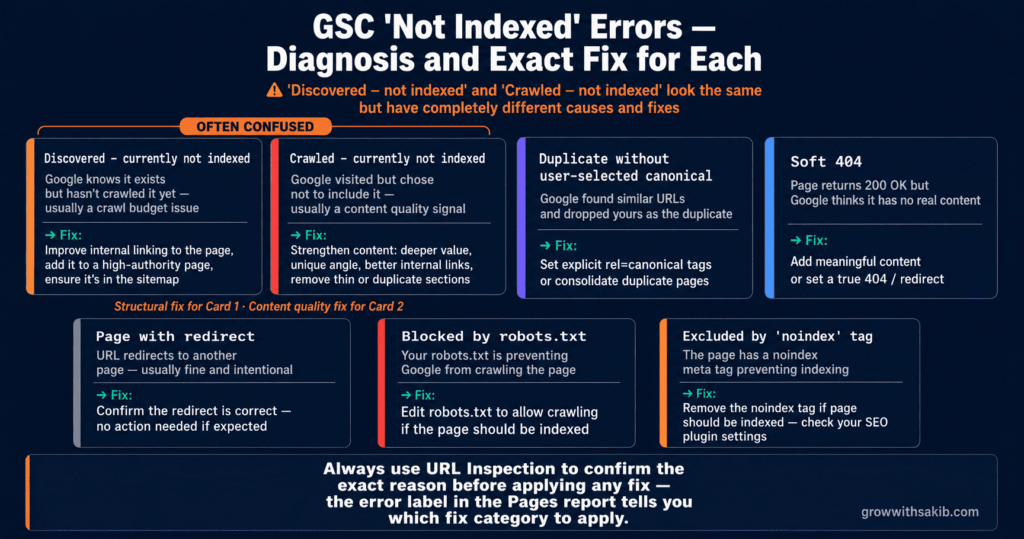
| Discovered – currently not indexed | Google knows the URL exists but hasn’t crawled it yet, usually due to crawl-budget concerns | Improve internal linking to the page, add it to a high-authority page, ensure it’s in the sitemap |
| Crawled – currently not indexed | Google crawled the page but chose not to index it — usually a content quality signal | Strengthen the content: deeper value, unique angle, better internal links, remove thin or duplicate sections |
| Duplicate without user-selected canonical | Google found multiple similar URLs and picked one as canonical, dropping the others | Set explicit rel=canonical tags or consolidate duplicate pages |
| Soft 404 | Page returns 200 OK but Google thinks it has no real content | Add meaningful content or set a true 404 / redirect |
| Page with redirect | URL redirects to another page — usually fine and intentional | Confirm the redirect is correct; no action needed if expected |
| Blocked by robots.txt | Your robots.txt is preventing Google from crawling the page | Edit robots.txt to allow crawling if the page should be indexed |
| Excluded by ‘noindex’ tag | The page has a noindex meta tag | Remove the noindex tag if the page should be indexed (check your SEO plugin settings) |
Two of these — Discovered – not indexed and Crawled – not indexed — confuse most beginners, and both relate directly to how well your local SEO and content pages are set up structurally. They look similar but signal different problems. The first means Google has not visited the page; the second means Google visited but decided not to include it. The fix for the first is structural (internal linking, sitemap, authority). The fix for the second is content quality.
How to Use the URL Inspection Tool
The URL Inspection tool lets you check the indexing status of a single URL, see when Google last crawled it, and request a re-index. You access it via the search bar at the top of any GSC page or directly in the left menu.
When to Use URL Inspection
- After publishing a new important page — to request priority indexing
- After making significant changes to an existing page — to push Google to re-crawl
- When troubleshooting why a page isn’t ranking — to see Google’s view of it
- To check whether a fix you made has been crawled and recognised yet
How to Request Indexing
- Paste the URL into the GSC search bar
- Wait for the inspection results
- If the page is not indexed, click Request Indexing
- Google will run a live test, then queue the page for crawling
- Crawling usually happens within 24 hours to 2 weeks — there’s no guarantee of immediate indexing
How to Use the Core Web Vitals Report
Core Web Vitals (CWV) measure real-user experience on your pages — and form a core part of any technical SEO strategy. Found under Experience → Core Web Vitals, this report shows how your URLs perform on mobile and desktop based on actual Chrome user data.
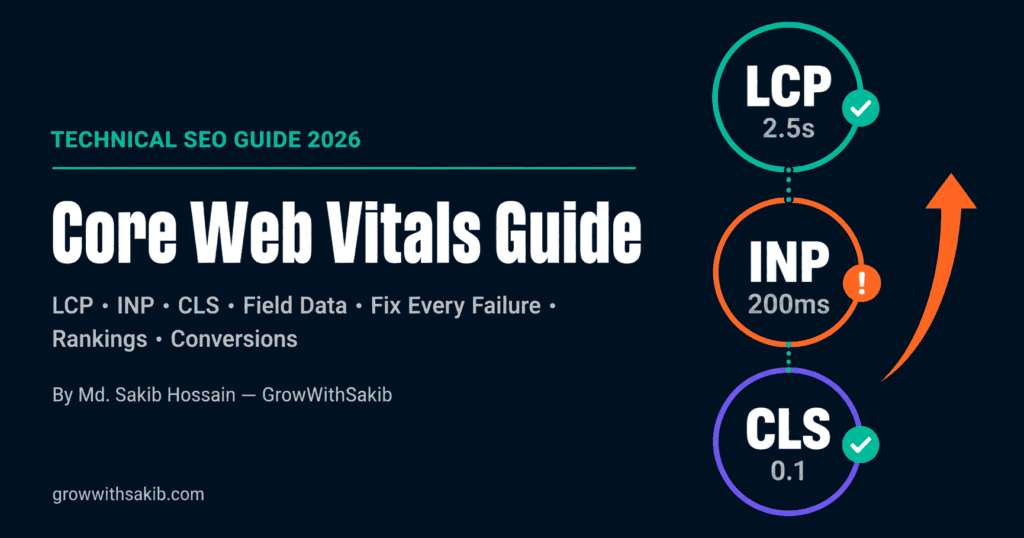
Google’s Core Web Vitals documentation on web.dev defines three signals: Largest Contentful Paint (LCP) measures loading; Interaction to Next Paint (INP) measures responsiveness; and Cumulative Layout Shift (CLS) measures visual stability.
| Status in GSC | What It Means | Action |
| Good | URLs pass all CWV thresholds | No action — keep monitoring |
| Needs improvement | URLs are close to thresholds but not failing badly | Optimise images, lazy-load below-fold content, review web fonts |
| Poor | URLs fail one or more CWV thresholds | Priority fix — affects rankings and user experience; see the Core Web Vitals guide for fix methodology |
If you see ‘Poor’ URLs, use PageSpeed Insights to diagnose the specific issue. It runs the same lab tests Google uses and provides actionable recommendations for each page.
How to Use the Links Report
The Links report — under Links in the left menu — shows you the backlinks pointing to your site (external links) and how your site links to itself (internal links). It’s free, official, and a useful sanity check on your link profile.
Three sub-sections matter most:
- Top linked pages — which of your pages attract the most backlinks. Useful for identifying high-authority pages to internally link from.
- Top linking sites — which domains link to you most often. Useful for spotting unexpected referral sources or potential partnerships.
- Top linking text — what anchor text other sites use when linking to you. Watch for spammy patterns or unnatural exact-match anchors.
GSC’s Links report is not as deep as dedicated tools like Ahrefs Site Explorer or Semrush Backlink Analytics, but it shows backlinks Google itself recognises — which is the only opinion that matters for rankings.
How to Connect Google Search Console to Google Analytics 4
Linking GSC to GA4 unlocks a set of integrated reports that show search query data alongside on-site behaviour. According to Google Analytics Help on Search Console integration, once linked you can see which queries drove users to which pages and what those users did afterwards.
- In GA4, click Admin → Product Links → Search Console Links
- Click Link and choose the GSC property that matches your GA4 website
- Select the GA4 web stream to link
- Confirm the link
- In GA4, enable the Search Console reports under Reports → Library so they appear in your left menu
Once linked, you can answer questions like: ‘Which queries bring users who actually convert?’ — a question the SEO results tracking guide walks through in full. That single insight is invaluable — it tells you which keywords to double down on for content and which ones are just vanity traffic.
Common Google Search Console Mistakes (and How to Avoid Them)
| Mistake | Why It Causes Problems | What to Do Instead |
| Setting up only a URL-prefix property | You may miss traffic on the www / non-www / http / https variants | Use a Domain property whenever you have DNS access |
| Ignoring the Pages report | Indexing problems sit undetected for months | Check the Pages report at least once a month for new errors |
| Requesting indexing on every URL | Wastes time; doesn’t speed up rankings | Use it sparingly for important new or updated pages only |
| Treating Average Position as exact rank | GSC averages across all queries and all impressions — it’s not a precise rank tracker | Use it for trend direction; use a dedicated rank tracker for absolute ranks |
| Not filtering branded vs non-branded queries | Branded traffic inflates your numbers and hides true SEO performance | Add a ‘Query does not contain [your brand]’ filter for a clear view |
| Panicking over short-term position drops | Day-to-day positions fluctuate naturally | Use 28-day comparisons or longer to spot real trends |
What Google Search Console Can’t Tell You
GSC is powerful, but be honest about its limits. These are the gaps you need to fill with other tools or observation:
- Exact daily rankings — GSC averages position across all impressions, which smooths out daily fluctuations. Use a tool like Ahrefs Rank Tracker or Semrush Position Tracking for precise day-to-day rank monitoring.
- Competitor data — GSC only shows your own site. Use third-party tools for competitor research.
- User behaviour after the click — that’s GA4’s domain. Link them together to bridge the gap.
- Real-time data — GSC data is delayed by 2–3 days. It’s not a real-time monitoring tool.
- Why a query triggered your page — GSC shows that it did, not the intent matching logic behind it. Understanding search intent is increasingly important as AI search changes how queries are answered.
Once Google Search Console is set up and you have your reporting rhythm in place, the next step is improving what the data reveals. For converting your impressions into more clicks, the on-page SEO guide on GrowWithSakib covers title tags, meta descriptions, and content structure. For building the authority that lifts your rankings, see the link building strategy guide. And to understand how all your tracking metrics fit together, the guide on tracking SEO results walks through the full reporting workflow.
Frequently Asked Questions
1. What is Google Search Console used for?
Google Search Console is a free Google tool that shows you how your website performs in Google Search. You use it to monitor impressions, clicks, click-through rate, and rankings; check which pages Google has indexed; identify and fix technical errors; submit sitemaps; and request indexing for new content. It’s the official source of truth for how Google interacts with your website.
2. How do I add my website to Google Search Console?
Go to search.google.com/search-console, sign in with your Google account, and click Add Property. Choose Domain property (recommended) or URL-prefix property, enter your site URL, then verify ownership through DNS, HTML file, HTML tag, Google Analytics, or Google Tag Manager. Verification typically completes within an hour.
3. How long does Google Search Console take to show data?
After verification, expect 2–3 days before performance data starts populating, and up to a week before you see meaningful trends. For new websites with no existing search visibility, it may take 2–4 weeks for impressions to appear in the Performance report. Indexing data in the Pages report usually updates within 3–7 days.
4. What’s the difference between Domain and URL-prefix properties?
A Domain property tracks every subdomain and protocol (www, non-www, http, https, blog, shop) under one property and requires DNS verification. A URL-prefix property tracks only the exact prefix you enter and offers multiple verification methods. Most small business owners benefit from Domain properties for cleaner, more complete data.
5. Why is my page not indexed in Google Search Console?
Common reasons include: the page is too new and hasn’t been crawled yet, the content quality is too thin, the page has a noindex tag, it’s blocked by robots.txt, or Google found it but assigned a duplicate canonical. Use the URL Inspection tool to see the exact reason, then follow the matching fix in your Pages report.
6. How often should I check Google Search Console?
Check the Performance report weekly to spot ranking and CTR opportunities. Check the Pages report monthly to catch new indexing errors. Look at Core Web Vitals and Mobile Usability monthly. Other reports — Removals, Crawl Stats, Security Issues — only need attention when GSC sends you an alert via email.
7. Is Google Search Console free?
Yes. Google Search Console is completely free with no usage tier, no premium upgrade, and no ad-related limitations. Any website owner can use the full feature set at no cost. The only paid alternatives are third-party tools like Ahrefs or Semrush, which offer competitor data and deeper backlink analysis that GSC doesn’t provide.
8. Does Google Search Console work for any website platform?
Yes. GSC works with any website regardless of platform — WordPress, Shopify, Wix, Squarespace, Webflow, custom-built sites, and everything else. The only requirement is that you can verify ownership through one of the supported methods (DNS, HTML file, HTML tag, GA4, or GTM). Most platforms have built-in fields for adding the verification tag.
Key Takeaways
- Choose a Domain property over URL-prefix when possible — it captures every subdomain and protocol in one place and prevents fragmented data.
- Verify ownership through DNS for Domain properties; use HTML tag verification (via your SEO plugin) for URL-prefix properties if DNS access is limited.
- Submit your XML sitemap immediately after verification — it accelerates Google’s discovery of your content.
- Use the report priority framework: Performance, Pages, and URL Inspection weekly; Core Web Vitals, Sitemaps, Links monthly; everything else only when alerted.
- Filter the Performance report by Position 5–15 plus high impressions to find your fastest ranking opportunities.
- Distinguish ‘Discovered – not indexed’ (structural problem) from ‘Crawled – not indexed’ (content quality problem) and apply the right fix.
- Use URL Inspection’s ‘Request Indexing’ sparingly — for new or significantly updated important pages, not every blog post.
- Link Search Console to Google Analytics 4 to unlock integrated reports showing which queries drive conversions, not just clicks.